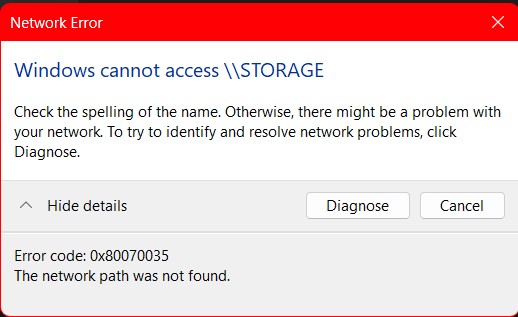
I just installed win 11 Pro 25H2 and I am having issues accessing other PC’s on the network. I see them but when I doulbe click it I get a access error and it does not connect..
Now I just had it working on my PC the other day when I had win 11 Pro 24H2 so all the settings as far as I can tell are correct and I can see the PC’s on a laptop on the network so it is working just not on my Win 11 Pro 25H2 PC..
I googled it too death so far no luck does experts have an idea.. I have tried the usual suspects all in vain.. I am unsure but I thing 25H2 is broke or similar..
for a faster throbleshooting its better in voice chat. Because only that is too few info and it can be multiple things. Anyway some suggetions:
check if both pc have the same IP class network
same domain name
the user that you are using to connect is on the other side as a valid user that have rights to access that shared folder
check blocks from firewalls
…..
they are on the same lan?
so without many many lacks on information about your network layout, configuration, etc its impossiible to point for 1 reason that will fix it immediatelly
well like I was saying it worked the other day same pc different version of win 11. it worked no issues once I set it up. well last night I switched to win 11 25H2 and now it does not work..
so again it did work the only difference now is one pc has win 11 25h2..I set all the other network stuff up and I could see and access the other PC’s from any PC in the house. it is all the same lan workgroup and all..
I set the folders to share and it all works just not on this PC.. and the only thing I changed was to win 11 25h2..
OK I made a little progress I had reset my network then I was asked for the password upon accessing those PC but got it wrong. and now I am back to where it was from the OP.. so I went ahead 1 step and back 2 I will fidgit with it for a bit probally just a misconfiguration or similar..
that match what i mentoned before, to access a network shared folder you should have the rights to access to the user that will connect. So the same user should be configurated on both pcs, on the client and server/destination pc. On the destination that user should be configurated as a “have rights to read or read/write” on the shared folder settings.
What you did was ok, lets bypass all this and give access to all users (even if they not exist, that is the guest allowence).
It works but not the correct way to do it in a security prespective.
Yes I should set the users to be a bit more secure. I did select everyone for testing but I am guess I should change them all back to a specified users..