If the cessna wheel is at least as good as the one on the Logitech/Saitek multi panel then it is a real game changer. Trim works SO much better for me now in MSFS.
A few years ago, I gave my Saitek trim wheel to my brother because I wasn’t flying GA sims as much. It worked well will my sims. Without it, trimming an ac in MSFS 2020 has become a game of chase the needle. I can’t seem to configure my current hardware to give me what I need for precise trimming.
2 Likes
FFB is better but still not the same (admittedly based on my now 10yo experience with two sticks). With center-sprung sticks, the problem is math. There is 50% of travel/force fore and aft of the spring. If you trim for 500KIAS/2°AOA, there is 50% fore and aft. If you trim for 150KIAS/11°AOA there is STILL 50% fore and aft. That’s a problem for which the player often blames himself.
1 Like
Yes, it was possible to fly more intuitively with my G940 FFB. Other than that, though, the rest of the stick was subpar. Few buttons or hats to cover things. Would have been a good F-4 model, or for any jet older than that, but it was not made for HOTAS.
I hope WW’s FFB base is good and affordable so I can do that with my Hornet and Viper grips again.
2 Likes
I built the 737 DIYSim cyclic (https://www.737diysim.com/product-page/heli-cyclic-stl-cad-files) , specifically to address this problem.
It works very well for what it is, but I do wish there was a hair less free play in the gears. Ironically it’s using the high precision rotary HES that allows for the little bit of play to be detected and used as stick movement.
2 Likes
Didn’t know where else to post this. F-4 feeding time.

14 Likes
Perfect!
1 Like
OM NOM NOM NOM! 
Though, I’m not sure I’ve seen the shark mouth on RF-4s so much, was it common?
Calling @PaulRix, just wondering which model Stream Deck you have and how you’ve set it up for the Phantom?
1 Like
Dan, I purchased the standard 15 key deck partly because it was on sale at Amazon and also because I just wasn’t sure it would be more than a gimmick. At some point I will probably pick up the 32 key version, and maybe even a Stream Deck + for MSFS.
I’m on the road for this week, so, from memory, I set the Stream Deck up with a page that has icons for each of the modules I mostly fly.
I have only started working on the F4 so far, but I have pages for engine start with keys set for moving the throttles in or out of cut off, ignition, canopy open/close, and a stop watch to time the INS alignment.
I have a two page ‘chapter’ for the armament panel which allows manipulation of all the rotaries and switches.
That is about as far as I have got. You will need to get the Stream Deck/DCS interface plugin which is free, and easy enough to set up.
I hope that helps!
2 Likes
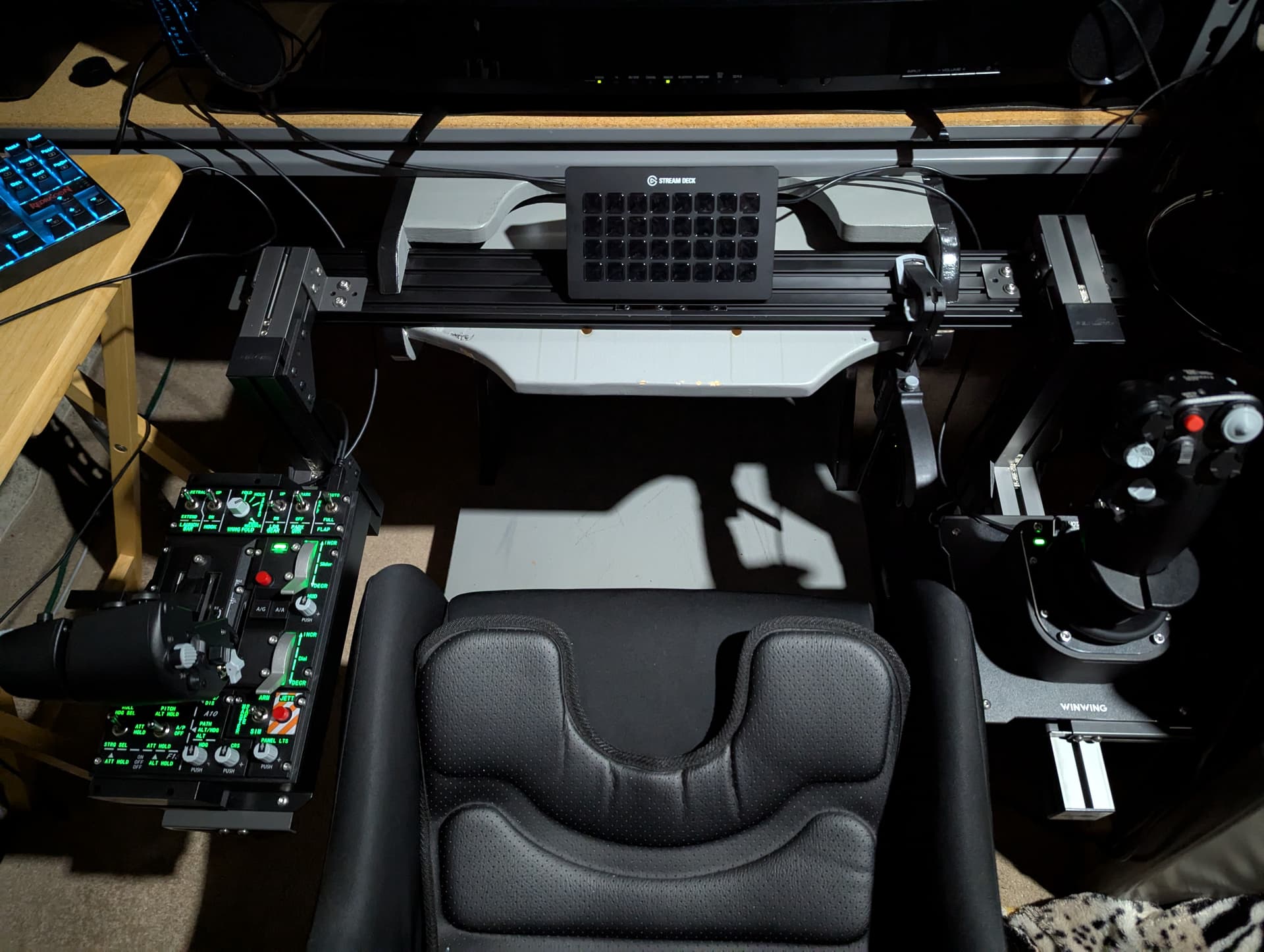
Any help to program all the buttons for this setup would be greatly appreciated!
That’s my next big step. Even if the StreamDeck doesn’t get used with VR I’m hoping to use for my back seater.
I’m probably a couple months at least from sitting down with everything, but I need to get rolling with more than just some gear/flaps programmed on the Throttle base. lol
4 Likes
I’m not sure how much you have dabbled with using the Stream Deck with DCS, but I highly recommend watching this video, which walks you through the process of setting up the DCS Interface. There are a couple of steps to follow.
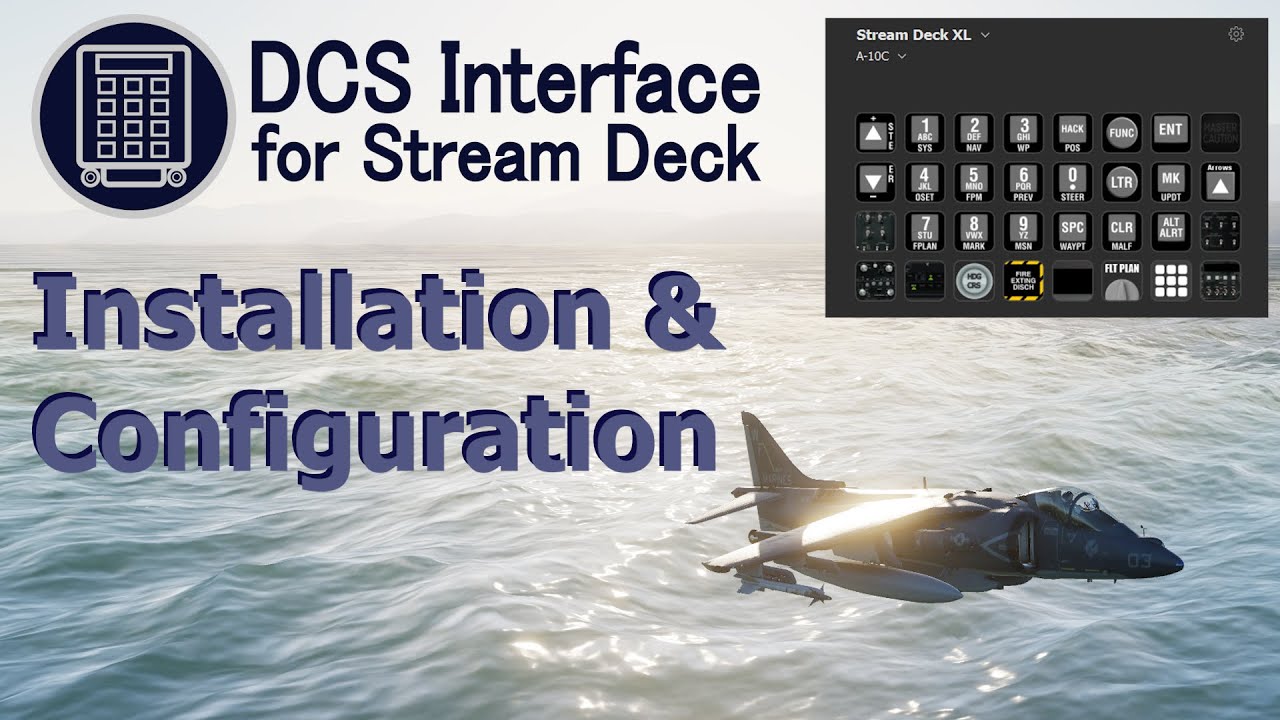
Once you have everything installed correctly, there is a degree of trial and error until it all clicks in your mind, and then it’s pretty straight forward.
When I get home I will post up my profile so that you can take a look at how it works. I’m very much a newbie though, so I am sure there will be a lot of room for improvement. BTW, I use it in VR by looking down through the nose gap.
11 Likes
Never knew I needed one, but here we are… The Bad Influencer claims yet another innocent and unsuspecting victim. 
9 Likes
Thanks, I have watched previously and played around “a little” with a Hornet setup that I pulled down when first setting things up. Admittedly I haven’t been able to spend much time with it all yet.
I’m a little afraid that it won’t be as useful in VR with the Q3 but that’s where I figure it might work well for my back seater (or IP) when I can throw pops back there to help me out. 
I really need to just bite the bullet and spend a few hours figuring out how to set up my Streamdeck.
1 Like
Same here. I got it during Black Week years ago and merely used it to start recording my races in rFactor 2. Now that our GT3 league has folded, this need has pretty much gone away and it’s collecting dust. Time to give it a second life 
4 Likes
So, I installed the requirements and it works basically. Now hunting for a nice profile. I have downloaded two so far:
- F-4E XL.streamDeckProfile
- F-4.streamDeckProfile
I assume the XL refers to the Stream Deck XL, and I only have a mk2. The other profile is working, but is missing some items, like light management (which is present in XL). Now what to do, can I copy/paste or merge the two?
Cheers,
TeTeT
3 Likes
Hi TeTeT
Hee. I wanted to give a short answer, but this has turned into a full blown tutorial.
This works for copying actions from a StreamDeck XL Profile to a smaller deck.
I will add some pictures later, but it is time to go to bed and I want to post this now.
It should also help anyone wishing to copying actions from one Stream deck profile to another, be it big or small.
The Lorby StreamDeck Editor makes this easier.
In this example we use Elgato’s free Stream Deck Mobile app and the Lorby StreamDeck Editor.
Install and open the Elgato StreamDeck software.
You need to install Elgato’s Mobile app on your phone or tablet.
Activate WIFI on your phone/tablet, connect it to the network containing the PC with the Elgato StreamDeck software and open the Mobile app
In the Elgato StreamDeck software click the down arrow to the right of the Device name, click the Add Mobile Device button and follow the instructions to connect your phone/tablet.

Once connected use the free version of the app to create a virtual 4x8 deck. You do not! need to upgrade to the Pro version to do this.
You can only use 6 buttons with the free app, but in this case it doesn’t matter, as we only need it to create a virtual 4x8 deck, so we can copy the actions from the XL Profile.
Once you have the 4x8 deck as an option to chose in the Elgato StreamDeck software you can delete the app.
Install the Profile that you wish to copy from, onto the virtual device in the StreamDeck software.
Note that there are some scripted actions that are not loaded or are not being loaded correctly into the Virtual Deck. This also happens if you try to load the Profile onto a physical device.
There are some kind of black box device ID and encryption Voodoo preventing them from loading properly.
If you later on find a 8x8 deck Profile and want to copy from that, as far as I have been able to figure out if you use the same phone/tablet, you seem to have to delete the existing Mobile Device before you can add a new one. Whether you can use another phone/tablet to create another mobile device I don’t know and cannot test.
Keep in mind that any Profiles connected with the Mobile Device will be deleted with the device.
Whether it is possible to reload a backup into a new Mobile Device is a good question. It depends upon if the identifiers change or not. I doubt it, but who knows.
You can now use the Elgato StreamDeck software to copy actions from one Profile to another.
This is very cumbersome and time consuming, so I prefer to use the Lorby StreamDeck Editor instead.
I find it so much faster and easier to use the Lorby StreamDeck Editor.
You can download Lorby StreamDeck Editor here:
Scroll down to the Prototype: Lorby Editor for StreamDeck V6 and the official Mirabox/key123 StreamDeck software section.
There are some limitations with the Lorby Editor:
Reply from Lorby in this thread:
https://www.avsim.com/forums/topic/628746-streamdeck-profile-editor/
The V6 prototype of the editor is available for download on the Lorby website.
It has a few limitations that can’t be overcome. Most importantly, you have to create empty Profiles in the Elgato software, you can no longer do it in the editor.
Make sure to create a backup of your “\AppData\Roaming\Elgato\StreamDeck\ProfilesV2” folder, either manually or using the backup feature of the editor.
Another reply from Lorby in this thread:
https://www.avsim.com/forums/topic/668920-streamdeck-editor-not-dragging-down/#comment-5458774
“what difference the StreamDeck software version 6.0 makes.”
In that version Elgato decided to encrypt the IDs of the StreamDeck Profiles and their pages. That means that the editor can no longer create or delete Profiles or pages, or create links between them (to call up one page from the other). All that you can do is drag actions around between existing pages - which is already possible with the native Elgato software.
This means that you will have to create Profiles, folders, pages and the linking buttons in the Elgato software. Then you can use the Editor to copy actions from one Profile page to another.
Using Lorby Stream Deck Editor
Foundation:
Start LSDE (Lorby Stream Deck Editor).
Backup before using LSDE the first time and after that when deemed necessary.
Reload if you have made changes with the Elgato software and LSDE is already running. (E.g. You have created a Profile with folders and/or pages and wish to populate it with actions.)
You have to quit the Elgato software before you can save with the editor.
As far as I can tell, you can leave the editor running while testing. At least when doing stuff that is not depending on special scripts. I have yet to use any of the DCS or MSFS Stream Deck plugins, so I have no idea about how that works.
LSDE shows each Profile, folder and page as a panel with the corresponding AppData folder name above it.
Note that the Editor shows Profiles, folders and pages in Numerical and Alphabetical order using the first digit in the folder name. So the Frontpage in a multi folder/pages profile will probably not be the one shown with the Profile name.
Here Double clicking the profile has brought up another page.

Folder name example: 8988P5WORH63T19EQAOMM504OCZ
They can be found here:
“\AppData\Roaming\Elgato\StreamDeck\ProfilesV2”
For Profiles you can find the name of the Profile by opening the manifest.json file inside the gibberish named folders.
A Profile is shown in the Lorby Editor with {} bracketing around the Elgato folder name.
For larger Profiles I will probably create a document where I list each Profile, folder and page together with the corresponding Elgato folder.
E.g.
DCS World {B3A9A3FC-70B0-4767-B19F-FF073D4119A2}
Front Page FFP33ELO5T6CJ38HFE3D37IFC8Z
View 09QNRMPC456JH0BNKJLLBPIOD8Z
Und so weiter.
For folders and pages, I have taken to add a colored action to the button that corresponds with the page number and another color for folders corresponding to the button I wish to open the folder with. I do this when I create the page or folder in the Elgato software.
In the pictures here I have used red for page 1 and 2 and green for folder 16 and 25. The blue rectangles are the panel clickable area.

For the more complex Profiles I would probably do this in a spreadsheet showing the connections between Profiles, folders and pages.
Working within the Lorby Editor
From here on out I refer to Profiles, folders and pages in the edit fields as panels
There are 3 fields in the editor
Left side
Contains Devices, Profiles, folders and pages
Top Right/Bottom Right
Load a panel into each and Delete, Move or Copy actions to and from each.
If you hover the mouse over any of the actions on the Left or Right side, a descriptor pops up.
Showing com.elgato.streamdeck.x.x
x.x can be different things and what it exactly means I really don’t know, but it is part some kind of descriptor(Whatever) for the action in the attendant manifest.json file.

Working on the Left side
Double click or click the arrow next to a device to see the list of installed or created Profiles
Click the arrow next to the Profile to see the list of panels. I recommend this.
You can double click the image to open the list, but it will also load the panel into one of the Right fields.
Click the arrow again to close the list.
To load a panel into the Top Right/Bottom Right fields, double click within the rectangle containing folder text and icon.
Top is filled first, then Bottom.
You can load any panel from any Device and Profile
If you want to load another panel:
In Top Right/Bottom Right field either click Apply changes (Green V) or Clear panel (Red X)

Navigate to the wished for panel and double click it.
If you make a mistake Clear the panel and load it again.
Once you have Applied changes to a single panel the Save button turns red and you can press it to save the profile.

If you have screwed up royally you can reset any changes by hitting the Reload button.
You can edit and Apply changes to multiple panels before saving.
Editing on the Right side
Left Click
Select/Deselect action/s
Click on multiple actions one by one to select more than one.
Left Double Click
Se/Edit Action Information (Don’t know anything about how this work.)
Left Click Drag
Move selected actions
When Dragged to to the wastebin actions are deleted

Right Click
Select/Deselect action/s (Left Click seems more stable so I recommend using that instead.
Right Click Drag
Copy selected actions
When Dragged to to the wastebin actions are deleted
You can Move or Copy to either the same or the other panel.
Note that sometimes it is not all actions that are moved, copied or deleted.
Sometimes when an action is Dragged above a greyed out action button it is added to it.
I have noticed this with some .profile.openchild and .system.hotkey actions. However not all of them.

If it happens, clear the panel/s, reload it/them and try to avoid touching the actions again when moving and copying.
Good luck with Stream Deck editing.
Happy Simming
DanTDBV
12 Likes
Wow, I don’t even own a Streamdeck, and I appreciate this guide!
3 Likes
I know right? That was downright brilliant.
1 Like