@Troll, you’re in good hands. I got nuthin’. Stopped by anyway to offer empathy. Good luck!
I’ll throw this in as maybe tangentially related, but there is a possibility of bad CPU’s from AMD as well. Leaving this here in case others have AMD issues and end up in this thread.
Had a coworker build a PC for his kid with AMD (I forget the CPU off hand) and it would blue screen after signing in to Windows the first time, and then any time after it booted to the login screen.
After much trials, it turned out the onboard GPU was defective, and it would blue screen because the GPU driver was installed in the background by Windows Update with the first background run of Windows Update. Manually doing the GPU driver resulted in the same failure.
Since this was December 27th, his kid really wanted to use his new Christmas PC so I met my coworker at the office to troubleshoot and we elected to disable the onboard GPU and go solely discrete Nvidia, and he would deal with RMA later so his kid could enjoy the holidays gaming. No issues once that was done, benchmarks & thermals were all good.
You can find the dump file in C:\Windows\Minidump if it managed to write the file before fully crashing.
To view it you need WinDbgPreview from the MS Store.
You can usually find the basic info in EventViewer.
- Update BIOS from the flash disk to the last available version
- Make sure that you activate the AMD EXPO profile in the BIOS.
- Ryzen doesn’t like Power Down Mode enabled if you have the RAM with odd numbers CL, for example: CL30, try to disable it in BIOS (Advanced RAM configuration)…
So… I managed to install windows again.
I removed the Windows update that causes the SSD controller issues, but that had no effect.
I tried @SkateZilla’s suggestion of checking temps and moving large files around and got a video of it.
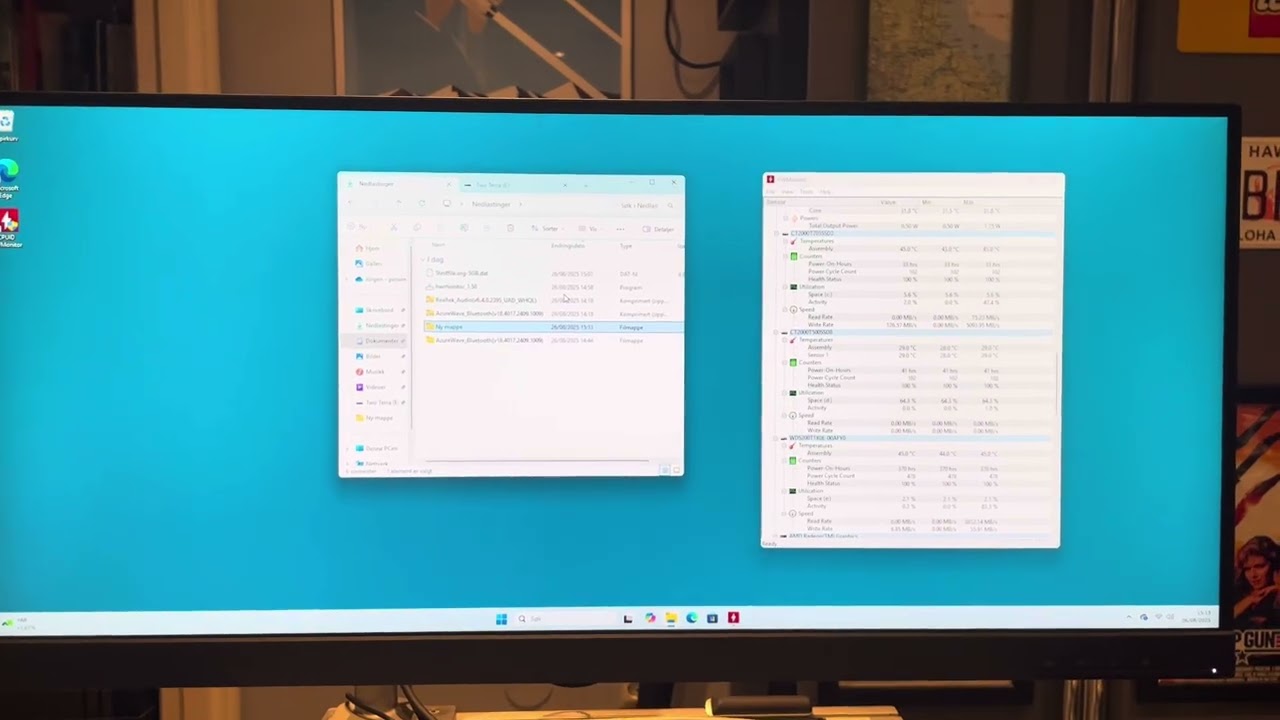
Temps seem ok, but notice how everything stops during the last file transfer…and then 
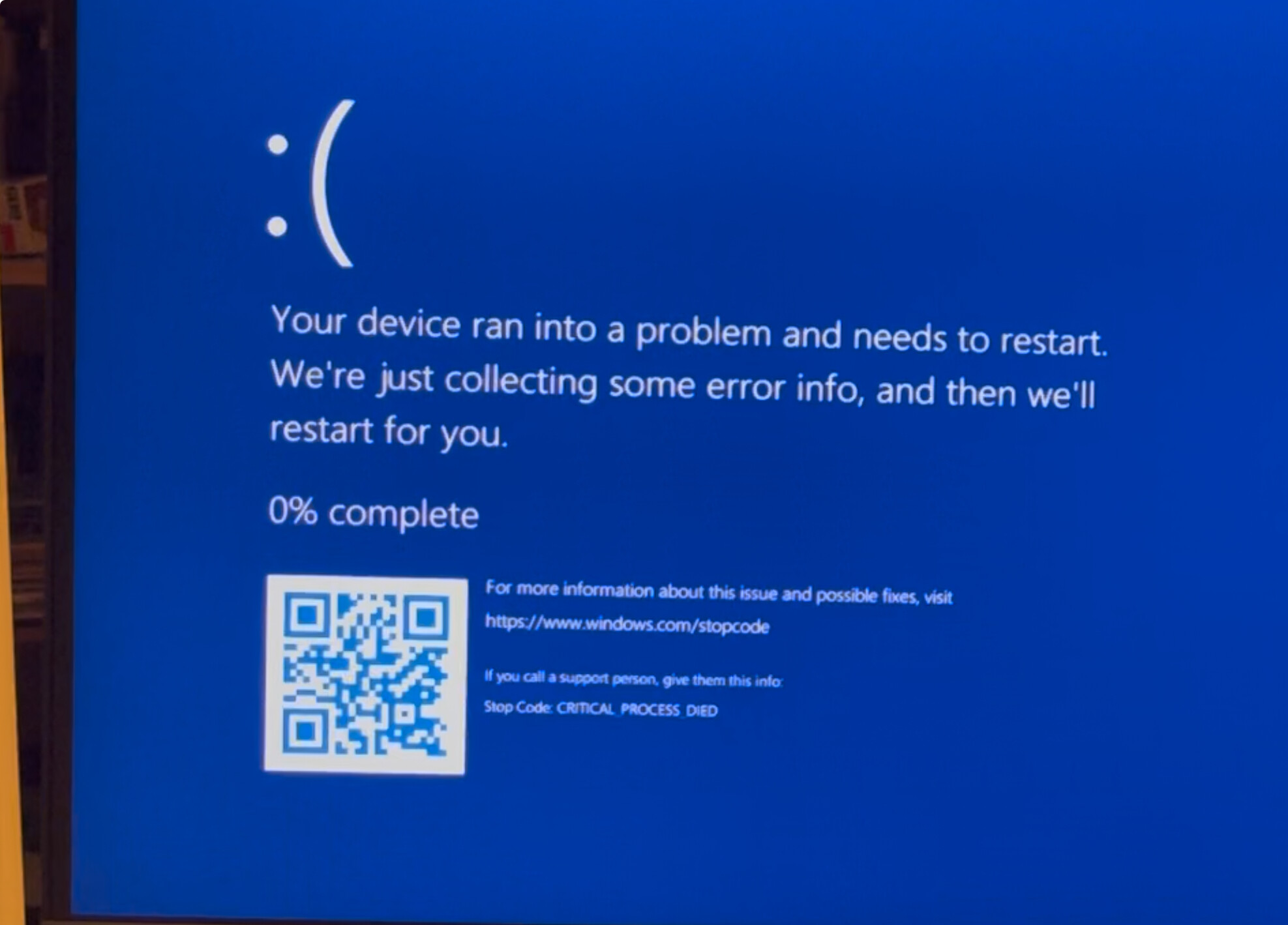
Stop Code: CRITICAL PROCESS DIED… No  !
!
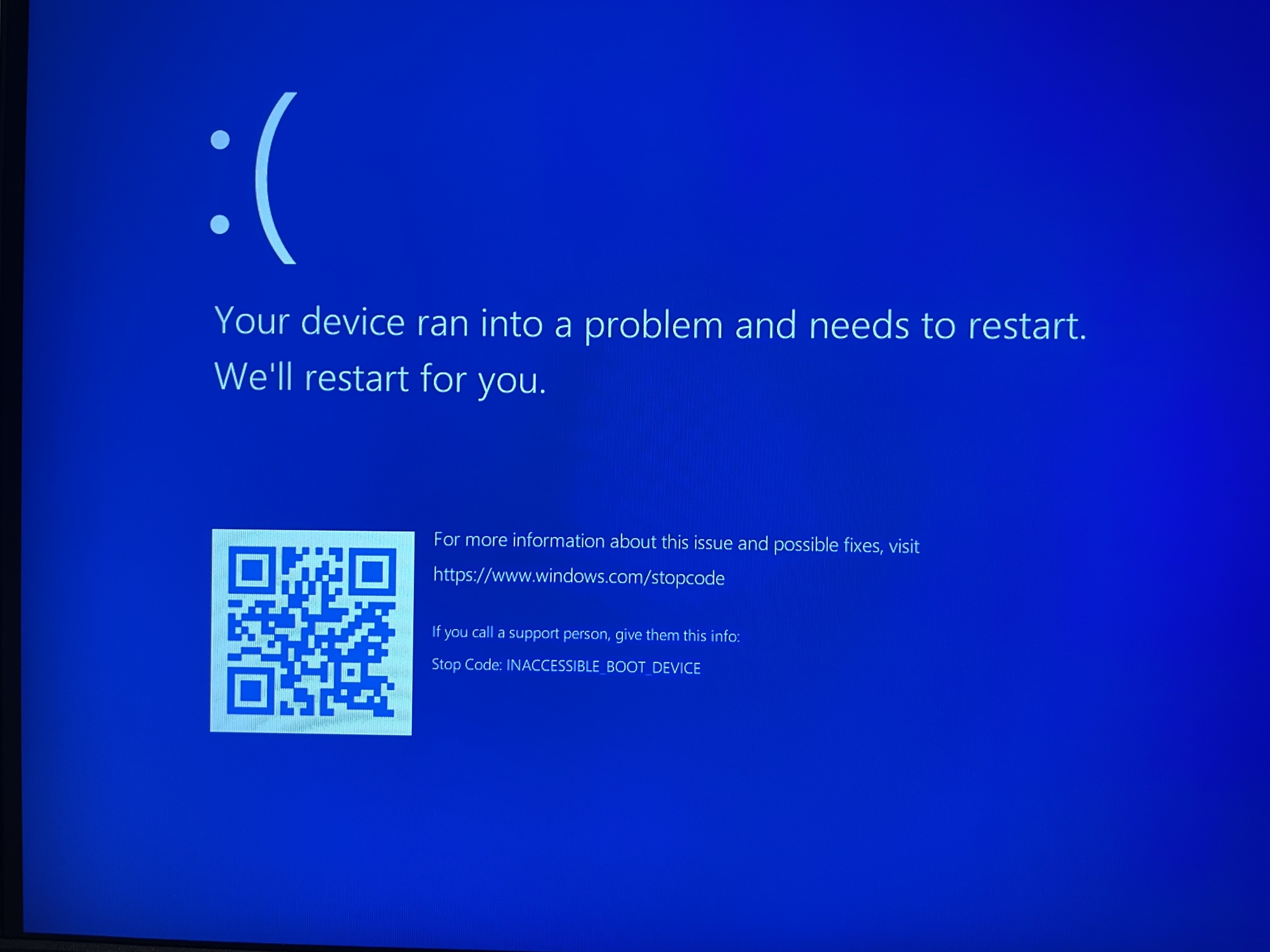
Those are fun errors.
They happen on hardware problems, like RAM, hard drive issues, or overheating components.
We covered RAM.
A hard drive change would be a logical next step
But you could try to check all cooling thingies, especially of the SSD, and run all fans on full speed.
Btw. What SSD is it? If it‘s PCIe 5.0 then cooling is to be taken very seriously.
It’s a Crucial T705 PCI5 NVMe.
It’s mounted in the only PCI5 M.2 slot on the MOBO and uses the heatsink for the slot. Didn’t seem that hot in the test…?
Btw, I did take it out and reseated it.
This issue has intrigued me, because I recall having similary symptoms two years ago when installing 7800X3D on X670E board (MSI). It was not easy to remember the exact solution, but I think I found it by looking into browser history.
It is possible that your issue is whole different, but for my case it was BIOS setting Memory Power Down strangely available on two different pages.
You might want to check this thread for any new ideas.
If you can, try another ssd. Or USB Stick, whatever.
Do you have a room ventilator? Open the case an let it blow inside full speed. Then test again. To exclude any heat issues.
Also that bios setting.
You see, we got plenty of work for you. 
The offending SSD has been removed.
Here’s a pic.
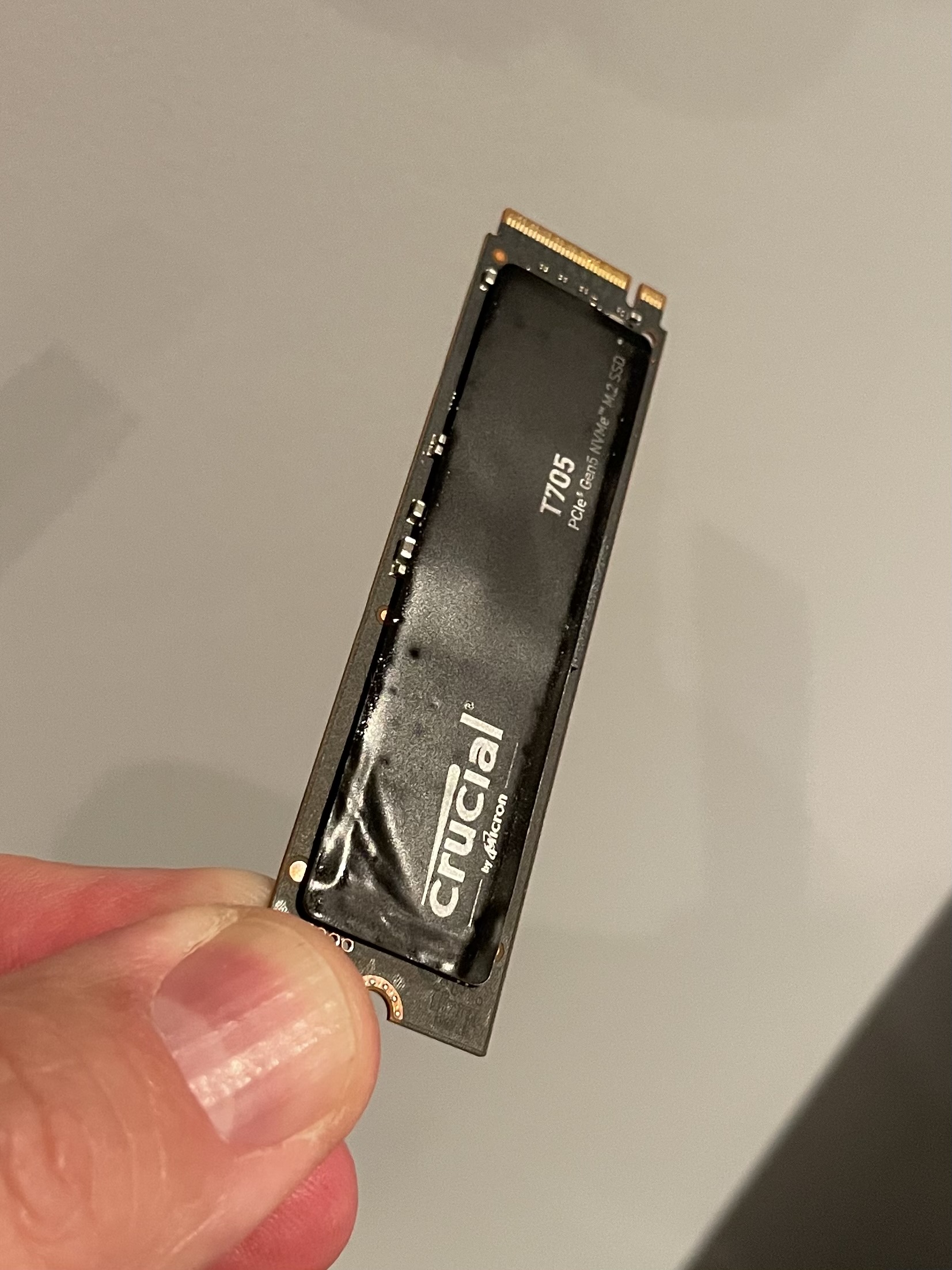
I remember I mistakenly started to remove the decal, not knowing it should be left on there. That’s what caused the crease near my thumb.
Could I have inflicted some damage here? Maybe caused a chip to heat up more than the rest?
I installed Windows to the PCI4 Crucial T700 2TB drive that sat in the other M.2 port.
System seems to be stable now…
I have moved 50Gb files to and from the drive several times, installed Nvidia drivers, etc. All of which caused crashes earlier…
Should I try moving the T700 to the M.2 port where the T705 sat…? Just to check if it’s the M.2 port, and not the drive itself…?
Can I just move it to another port, just like that? (Power off, off course)
Yes, by now even Windows got the Memo that drives are to be identified by unique id and not controller port.
Usually the port closest to the CPU is where you want to put the OS drive.
You might have caused a small air pocket by fumbling with the sticker. There‘s videos out there about PCIe5 drives and stickers and cooling. So you might be able to fix this, but certainly not with the stock cooler that came with the mainboard. Good luck!
I guess I could try removing the sticker and get a heatsink for it. Doesn’t cost much and is certainly worth a try.
I’ll also try the T700 drive in the M.2 port of the removed drive. If the port is bad I have to RMA the MOBO… But I have a hunch I’m the bad guy here, trying to remove that sticker. Couldn’t they just write Do Not Remove on them?
Anyway, huge thanks to everyone participating in the thread. Your insights are invaluable and your support unwavering!
Good it seems to work now! Although I have to say I am a bit suspicious about the sticker wrinkle causing the issues, but everything is possible.
Good idea to swap the remaining drives to see if there are issues with the MB. Let’s hope the system remains stable now! 
You need to know that a PCIe 3.0 drive is cool as a cucumber, 4.0 needs a heat sink for those few minutes of peak use, and 5.0 becomes burning hot over storing a few megabytes.
It kind of escalates quickly, which is why nobody recommends to buy early gen PCIe 5.0 drives.
But…but…they are really, really fast! 
I will replace it with a PCI4 drive.
Yeah, maybe not the wrinkle itself, but I may have damaged something when I tried to pull it off. I noticed straight away that this decal is probably not meant to be taken off because it took a lot of effort to pull up that small corner… I may have cause a crack in the pcb or a solder or something.
Will be interesting to see if the slower PCI4 drive will run stable in the PCI5 port.
When swapping drives I noticed that the heatsink has quite a lot of play… Is this ok…?
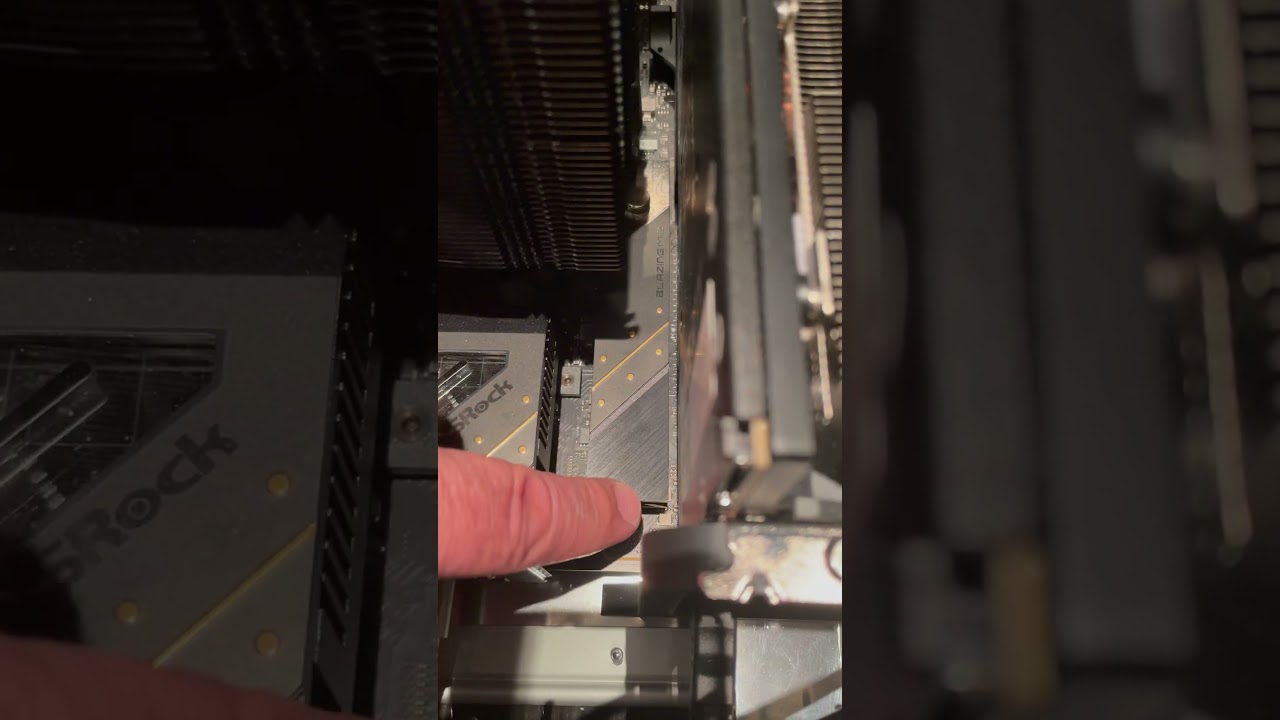
Swapping to the M.2 port where the faulty drive sat proved to be no problem…
So I guess it is the drive that’s busted. Unless, there is something shoddy with that heatsink…?